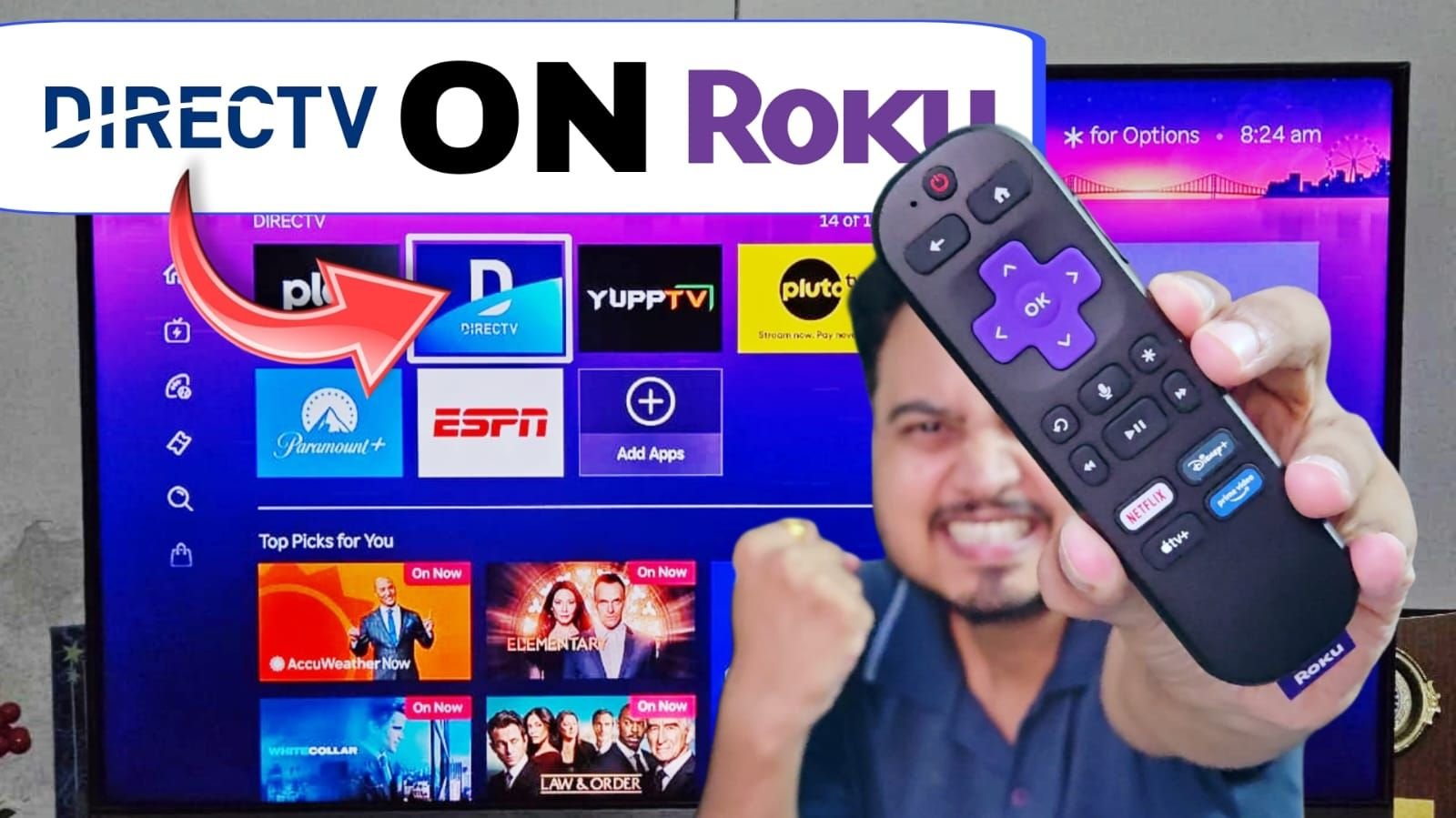
Are you looking to watch your favorite live TV channels, sports, and movies without dealing with messy cable wires? Cutting the cord has never been easier, and bringing premium television directly to your living room is now just a few clicks away. Today, DirecTV is one of the most popular streaming services for cord-cutters in the United States.
In this comprehensive guide by USA Streaming Guide, we will show you exactly how to find, install, and set up the official DirecTV app on your Roku device in just a couple of minutes.
For those who prefer a quick visual walkthrough, you can watch our step-by-step video tutorial below!
Is Your Roku Running Slow?
Before you install new apps, if your current Roku TV or Streaming Stick is lagging, freezing, or taking too long to load channels, it might be time for a hardware upgrade. Newer streaming devices handle live TV apps like DirecTV much faster.
Here are the top two streaming devices we highly recommend for the best cord-cutting experience in 2026:
- Roku Ultra (Ultimate Streaming Player): This is the fastest Roku ever made. It comes with a seamless interface, Dolby Vision, and an Ethernet port for buffer-free live sports.
- Amazon Fire TV Stick 4K: Looking for a budget-friendly but powerful alternative? The Fire TV Stick 4K offers brilliant picture quality, Alexa voice controls, and lightning-fast app loading times.
Why Choose DirecTV on Roku?
Now, let’s get back to the installation! It is important to understand why so many users are switching to the DirecTV app on their Roku devices. DirecTV offers a cable-like experience but purely over the internet. You get access to local news, national sports networks, and top-tier entertainment channels with a super clean, easy-to-navigate interface. Combining this powerful live TV streaming service with Roku’s user-friendly operating system gives you the ultimate entertainment hub.
Read More:
Step-by-Step Guide: How to Install DirecTV on Roku
Follow these simple instructions to get the app running on your Roku TV or Roku Streaming Stick.
Step 1: Go to the Roku Home Screen
First, grab your Roku remote and press the “Home” button. Make sure you are on the main dashboard where all your current channels and settings are displayed.
Step 2: Navigate to the Search Menu
Using the directional pad on your remote, scroll down the left-hand side menu until you find the Search option. Press the “OK” button to open the search bar.
Step 3: Search for DirecTV
Use the on-screen keyboard to type in “DirecTV”. As you type, Roku will automatically generate results on the right side of your screen.
Step 4: Select and Install the App
Once the official DirecTV app icon appears in the search results, use the right arrow on your remote to highlight it and press “OK”.
- If you are downloading it for the first time, your button will say “Add app”. Simply click on it, and Roku will begin the installation process.
- Note: If you already have the app installed on your device, the button will say “Open app” instead.
Step 5: Launch the Application
Once the installation is complete, Roku will notify you. You can press the Home button to go back to your main screen. Scroll all the way down to the very bottom of your channel list, and you will find your newly installed DirecTV app. Click on it to open.
Setting Up Your Account: Sign In or Sign Up
When the app launches, you will notice that the interface is incredibly fast and responsive. However, before you can start watching live TV, you need to link an account.
You will be prompted with two options on the screen:
- Sign In: If you already have a DirecTV Stream subscription, simply enter your email and password to log in.
- Sign Up: If you are a new user, you will need to create an account and choose a channel package.
Sign Up Process:
Frequently Asked Questions (FAQs)
Is the DirecTV app free on Roku?
Yes, downloading the DirecTV app from the Roku Channel Store is completely free. However, you will need an active, paid DirecTV subscription to log in and watch the content.
Can I watch live local channels on DirecTV via Roku?
Absolutely! Depending on your specific subscription package and your ZIP code, DirecTV offers access to local network channels like ABC, CBS, NBC, and FOX.
How do I update the DirecTV app on Roku?
Roku automatically updates your apps in the background. If you want to force an update, hover over the DirecTV app on your home screen, press the asterisk (*) button on your remote, and select “Check for updates”.
Conclusion
Adding the DirecTV app to your Roku device is a quick and painless process that opens the door to hundreds of premium channels. By following the steps above, you should be up and watching in less than two minutes.
If this guide helped you, don’t forget to bookmark USA Streaming Guide for more easy cord-cutting tutorials, and let us know in the comments if you have any questions!
Disclaimer: As an Amazon Associate, USA Streaming Guide earns from qualifying purchases. This means we may earn a small commission at no extra cost to you if you purchase through our links.
1 thought on “How to Install DirecTV App on Roku”