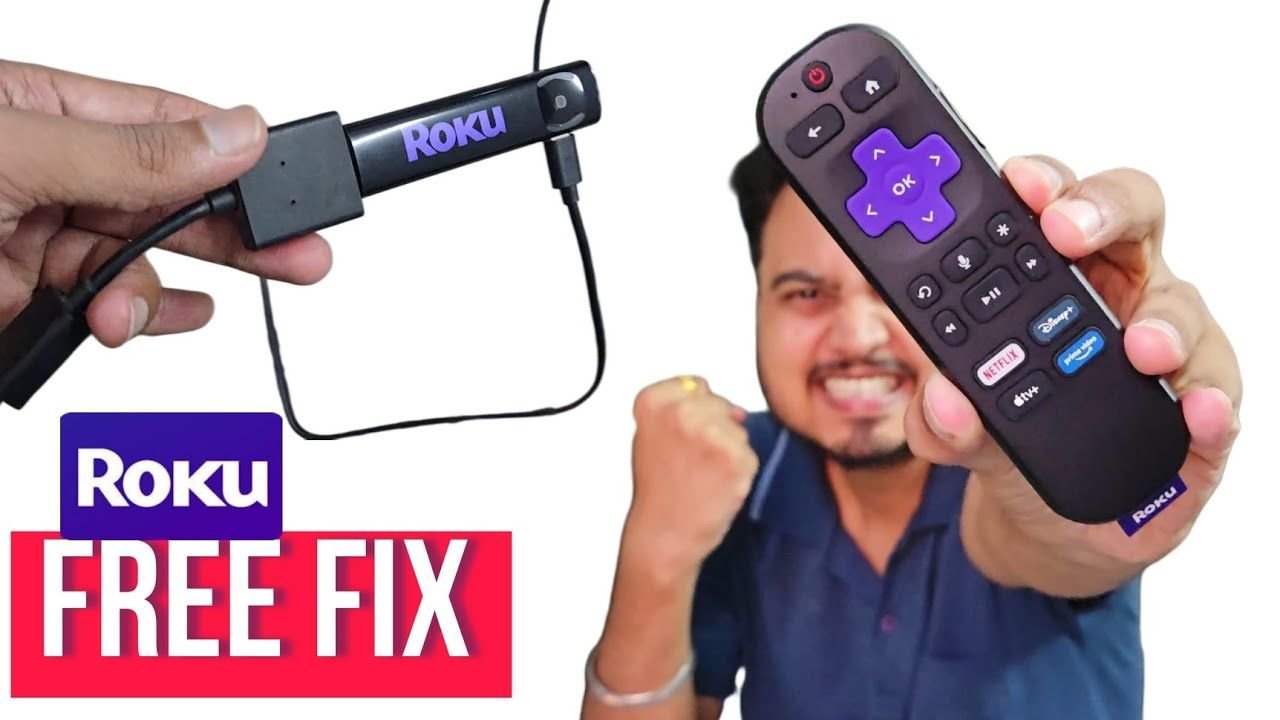
Is your Roku Streaming Stick constantly lagging, buffering in the middle of your favorite shows, or throwing an annoying “overheating” warning message on your screen? It is a frustrating experience that can easily ruin a perfect movie night or live sports event.
However, before you rush out to buy a new device or upgrade your internet package, you need to look behind your television. The core problem might actually be how you have your device plugged in. Most of us naturally just jam the Roku directly into the HDMI port on the back of the TV. It seems convenient, but this is a massive mistake that is quietly killing your streaming stick.
Welcome to USA Streaming Guide! Today, we are going to show you a simple hardware trick that will instantly fix your Roku connectivity issues and make it last years longer. And the best part? You can get this solution for absolutely free.
The Big Mistake: Why You Shouldn’t Plug Directly Into the TV
Let’s talk about why plugging your Roku straight into the back of your television is a terrible idea. There are three major reasons why this setup guarantees poor performance:
1. The Heat Trap
Modern flat-screen TVs generate a massive amount of heat, especially right around the rear panel where the HDMI ports are located. When your Roku Streaming Stick sits completely flush against this hot TV panel, it absorbs all of that excess heat. This causes the internal processor of the Roku to overheat rapidly, which leads to freezing screens, random device reboots, and a significantly shortened lifespan.
2. The Wi-Fi Dead Zone
The back of your TV is essentially a dead zone for wireless internet signals. Being sandwiched tightly between a solid wall and the metal casing of the television effectively blocks the internal Wi-Fi antenna inside the Roku stick. This weak signal is exactly why your high-definition movies keep buffering, even if you have fast internet at home.
3. Physical HDMI Strain
Roku sticks are relatively bulky. Plugging them straight in puts heavy physical pressure on your TV’s delicate HDMI ports. If your TV is wall-mounted on a slim bracket, the angle can severely bend and damage both the streaming stick and the expensive port on your television.
The Ultimate Fix: A Simple HDMI Extender
The ultimate fix to all of these problems is an incredibly simple accessory: an HDMI Extender.
An HDMI extender is just a short, flexible cable that goes between your TV’s port and your Roku. This tiny two-inch gap makes a world of difference. It moves your Roku away from the hot TV panel, allowing it to get proper airflow and stay perfectly cool. It also takes all the heavy physical weight off your television’s ports. Because the Roku now hangs slightly away from the TV’s body, your Wi-Fi reception improves instantly, giving you a faster, buffer-free connection.
How to Get Your HDMI Extender for FREE!
Now, you could easily go to Amazon and buy one of these extenders for a few dollars. But you don’t have to!
Roku actually knows that overheating and Wi-Fi interference are common issues caused by direct TV connections. Because of this, they offer a hidden program to send you the fix for free.
Read More:
Here is how to claim yours:
- Visit the official Roku website and search for the Free HDMI Extender Form (or go directly to my.roku.com/hdmi).
- Fill out the simple online form with your basic shipping details.
- Enter your specific Roku Serial Number (you can find this in your Roku Settings under System > About, or printed physically on the stick itself).
- Roku will process your request and ship a flexible HDMI extender directly to your door, completely free of charge!
Bonus Step: Restart Your System
Once your free extender arrives in the mail, connect your Roku to it and plug it into the TV. After that, always remember to give your device a quick system restart from the settings menu. This clears out any temporary software glitches, resets your network connection to utilize the better Wi-Fi signal, and lets your Roku run cool and smooth.
Watch the Full Video Guide Here:
If you want to see exactly how this works, check out our full video tutorial below!
Still Having Issues? It Might Be Time to Upgrade
While the free HDMI extender works wonders for heat dissipation and Wi-Fi interference, it unfortunately cannot fix an outdated processor.
If your Roku is more than three or four years old and is still lagging or buffering even after using the extender, the internal hardware is likely just too obsolete to handle modern, heavy streaming apps and live sports. Today’s high-definition streams require a lot of processing power.
If it is time for a replacement, here are the two best upgrades we highly recommend to permanently stop the buffering:
- For the Best Value: Upgrade to the [Roku Streaming Stick 4K]. It is lightning-fast, hides neatly behind your TV, and handles live TV flawlessly with its long-range Wi-Fi receiver.
- For the Ultimate Experience: If you want zero buffering guaranteed, grab the [Roku Ultra]. It comes with a massive processor upgrade, a lost-remote finder, and an Ethernet port so you can wire it directly to your internet router.
(Disclaimer: As an Amazon Associate, we may earn a small commission from qualifying purchases at no extra cost to you. This helps support the channel so we can bring you more free streaming tips!)
Did you already know about this free Roku hardware trick? Let us know in the comments below! If this guide helped you save your device, make sure to bookmark USA Streaming Guide for more money-saving cord-cutting tips.
2 thoughts on “How to Fix Roku Overheating for FREE”