
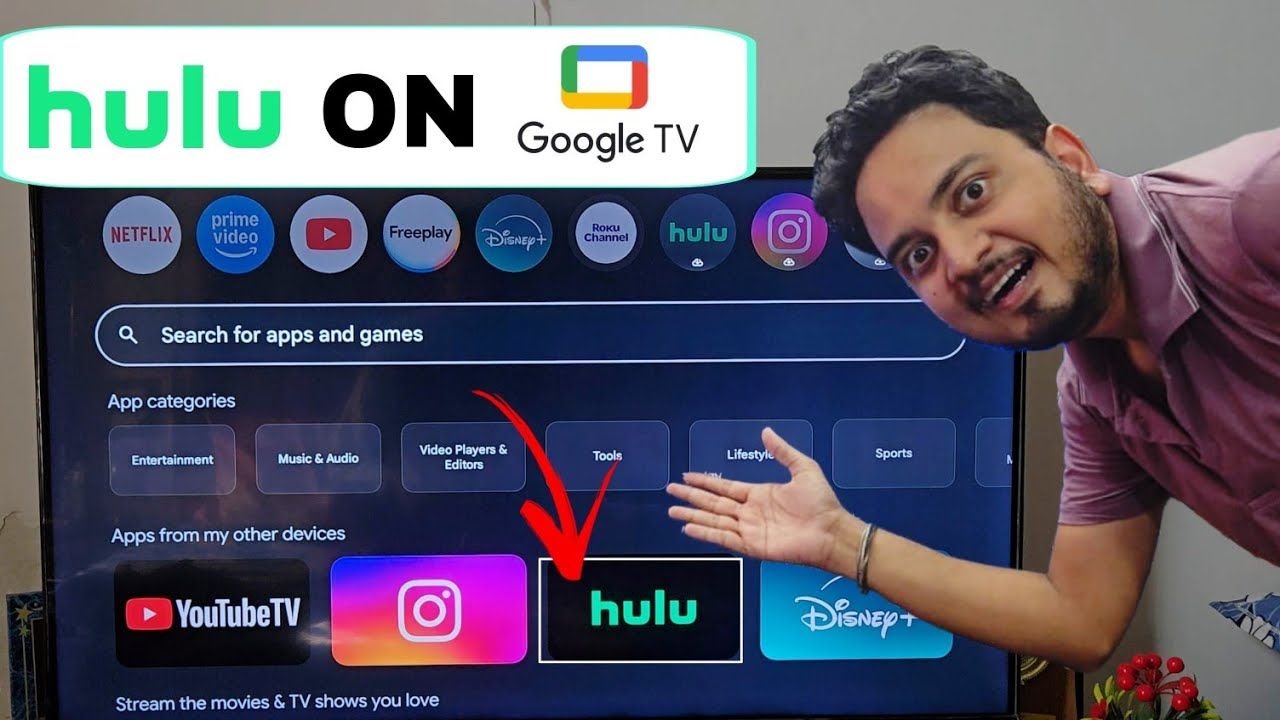
Are you trying to catch your favorite network shows, live sports, or exclusive blockbuster movies on Hulu, but can’t figure out how to get the app onto your new Google TV? You are not alone. As millions of American households continue cutting the cord in 2026, combining the massive streaming library of Hulu with the smart interface of Google TV has become the ultimate entertainment setup.
Whether you are using a built-in Google TV from brands like Sony, TCL, or Hisense, or you are using a dedicated streaming box, installing Hulu should be a breeze. In this comprehensive guide, we will walk you through the exact, step-by-step process to find, download, and install the official Hulu app on any Google TV device in just a few seconds.
Why Upgrade Your Streaming Hardware? (Quick Tip)
Before we jump into the installation process, let’s address a common issue many cord-cutters face. Is your current Google TV interface super slow to respond when you press a button? Or worse, does your live streaming keep freezing and buffering right in the middle of a big scene or a crucial sports play?
If this sounds familiar, it might be time for a quick hardware upgrade. Streaming apps like Hulu and Hulu + Live TV require a decent amount of processing power.
Editor’s Choice for Buffer-Free Streaming: We highly recommend upgrading to the newest, lightning-fast Google TV Streamer or the Chromecast with Google TV 4K. These devices plug directly into your TV and offer crystal-clear 4K resolution without the annoying lag.
Step-by-Step: How to Download and Install Hulu on Google TV
The great thing about Google TV is that it runs on the Android TV operating system, meaning it has full access to the Google Play Store’s massive library of streaming applications. Here is the easiest way to get Hulu up and running.
Read More:
Step 1: Navigate to the Home Screen
First, grab your Google TV remote and make sure your television is turned on and connected to a stable Wi-Fi network. Press the Home button on your remote so you are starting right on the main Google TV home dashboard.
Step 2: Access the Search Feature
From the home screen, use the directional pad on your remote to navigate to the top menu. You have two options here:
- Scroll over to the Apps tab to browse the application store.
- Go directly to the Search bar (usually indicated by a magnifying glass icon).
Step 3: Search for the Hulu App
Now, you need to look for the official Hulu application. Google TV gives you two very easy ways to do this:
- The Voice Method (Fastest): Hold down the Google Assistant voice button on your remote and simply say the word “Hulu”. The system will instantly fetch the app.
- The Manual Method: If you prefer typing, use the on-screen keyboard to type the letters H-U-L-U. You likely won’t even need to finish typing the whole word before the app pops up in the suggested search results.
Step 4: Install the Application
Once the official Hulu app appears in the search results almost immediately, use your remote to highlight the green Hulu app icon and click the Select (or OK) button.
This will take you to the app’s official details screen. Simply click the Install button. The Hulu app is completely free to download, though you will need a subscription to watch the content. The download and installation process usually takes less than a minute, depending on your internet connection speed.
Step 5: Launch the App
Once the quick installation finishes, you will notice that the “Install” button will automatically change to Open. Go ahead and click that button to launch the Hulu app directly from the store page. (You can also find the app later by scrolling to the “Your Apps” section on your home screen).
How to Log In and Activate Your Hulu Account
Now that the application is successfully installed on your Google TV, getting into your account is super easy.
- When the Hulu app launches, you will be greeted by the welcome screen. Select the Log In option.
- Choose the option to log in on the device.
- Enter your existing Hulu account email address and password using the on-screen keyboard.
- (Alternative Method): Hulu may also give you an activation code on the screen. If you choose this route, you can go to [hulu.com/activate](https://hulu.com/activate) on your smartphone or computer, log in there, and type in the code displayed on your TV to instantly sync your account.
Once you are signed in, you will have full access to the entire Hulu streaming library, exclusive FX shows, Hulu Originals, and your live TV guide right there on your television!
Troubleshooting: Can’t Find Hulu on Google TV?
Occasionally, some users run into a snag where they cannot find the Hulu app in the Google TV search results, or they see an error saying “This item is not available in your country.”
Since Hulu is a US-exclusive service, your Google TV and the Google Account linked to it must be registered in the United States. If you recently moved, or if your device is using a Google account registered in another country, the Play Store will hide the Hulu app. To fix this, ensure you are using a US-based Google account and that your internet connection is showing a US location.
Conclusion
Adding Hulu to your Google TV setup is one of the best ways to maximize your cord-cutting experience. Whether you are binge-watching classic sitcoms, catching up on reality TV, or watching live sports through Hulu + Live TV, the platform works flawlessly on Google TV’s intuitive interface.
If this quick setup guide helped you out today, be sure to bookmark USA Streaming Guide for more easy cord-cutting tips, streaming tutorials, and hardware reviews. Happy streaming!