
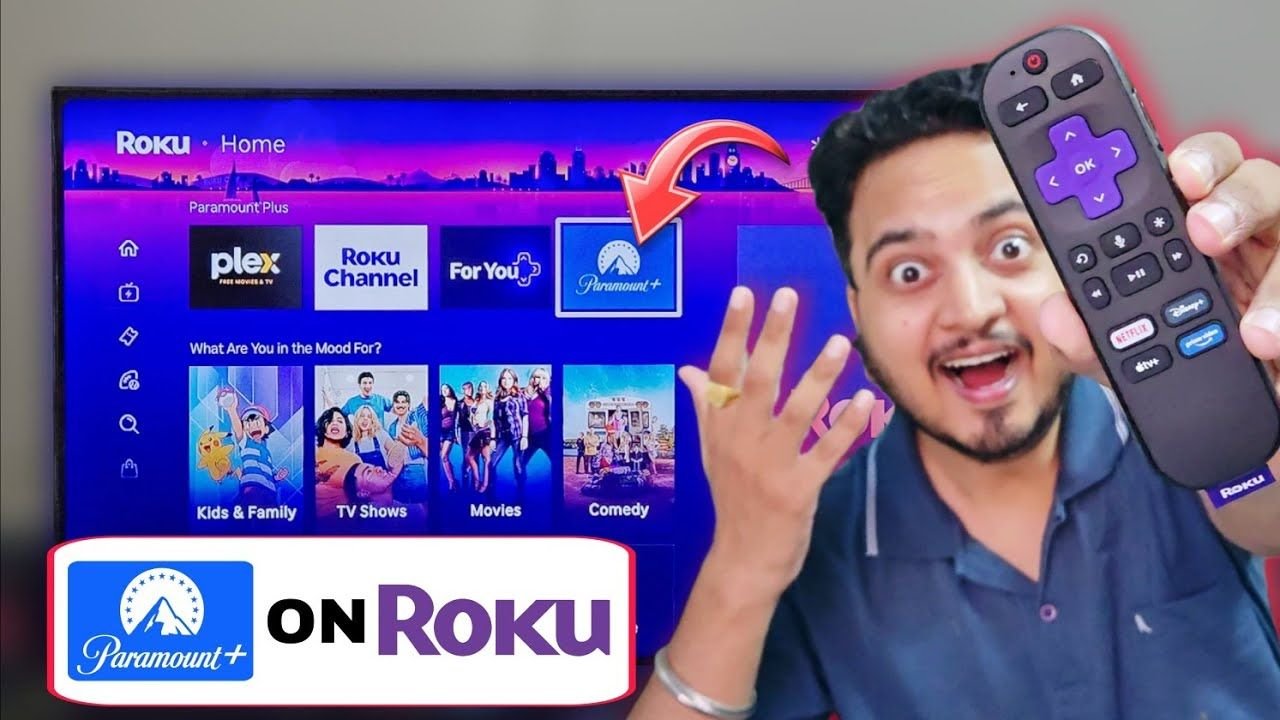
Are you trying to figure out how to get Paramount Plus on your Roku device? Whether you are looking to binge-watch hit original TV shows, catch up on blockbuster movies, or stream live NFL Sunday sports, having the Paramount Plus app on your TV is essential.
However, Roku’s interface can sometimes be tricky to navigate for new users, and finding the app store isn’t always obvious. In this quick and easy step-by-step tutorial, we will show you exactly how to find, install, and properly set up the Paramount Plus channel on any Roku smart TV or Roku streaming stick in just a few minutes.
Before We Begin: Stop Roku Buffering and Lag
Real quick, before we dive into the installation steps, we need to talk about your hardware. Live streaming apps like Paramount Plus require a lot of processing power. If you are using an older generation Roku stick, you might notice that it runs super slow, freezes up, or buffers constantly while trying to load these heavy new applications.
If your device is struggling to keep up with live sports and HD movies, it might be time for a hardware upgrade. Upgrading your streaming device is the only permanent fix to stop the annoying lag. We highly recommend grabbing the newest Roku Ultra for a lightning-fast, buffer-free streaming experience, or upgrading your living room with a brand new TCL Roku Smart TV.
Step-by-Step Guide: How to Add Paramount Plus to Roku
Ready to start streaming? Grab your Roku remote and follow these simple steps to get the app downloaded to your television:
Step 1: Navigate to the Home Dashboard
First, pick up your Roku remote and press the Home button. This ensures that you are starting from the main Roku dashboard, closing out of any other apps you might have had open.
Step 2: Access the Roku Search Menu
From this main home menu, look at the left side of your screen. Use the directional pad on your remote to scroll down the sidebar menu until you see the Search option. Highlight it and click the OK button on your remote.
Read More:
Step 3: Search for the App
Now, you will see an on-screen keyboard. Use your remote to start typing the word “Paramount”. Usually, the Roku search engine is very fast, and you only need to type the first few letters (P – A – R – A). You will immediately see Paramount Plus pop up in the search results on the right side of your screen.
Step 4: Install the Channel
Use your right directional arrow on the remote to highlight the Paramount Plus name in the search results and press OK. This will take you directly to the app’s official details page. Next, simply highlight the Add Channel button and press OK again. Your Roku device will now download and install the app. This usually just takes a few seconds, depending on your home internet connection speed.
Step 5: Open and Organize
Once the loading bar finishes, your screen will say “Channel Added.” Just hit OK. You can now select Go to Channel to open Paramount Plus immediately and sign in.
Optional Tip: If you go back to your main home screen, you will find the Paramount Plus app sitting at the very bottom of your app list. If you use it often and want to move it higher up to the top row, just highlight the app, press the Star (*) button on your remote, and select Move Channel. Use the arrows to place it wherever you like!
Watch the Video Tutorial
If you prefer a visual walkthrough, check out the full video tutorial below from USA Streaming Guide. We show you exactly how to navigate your TV menus in real-time!
Troubleshooting: App Not Showing Up?
Quick tip: If you don’t see the Paramount Plus app in the search store, or if it gives you a strange error code when trying to click “Add Channel,” your Roku operating software might be out of date.
To fix this, go to your Roku Settings, scroll down to System, and select System Update. Run a quick manual update to ensure your stick has the latest software patch, restart the TV, and then try the search steps again.
1 thought on “How to Install Paramount Plus on Roku”