
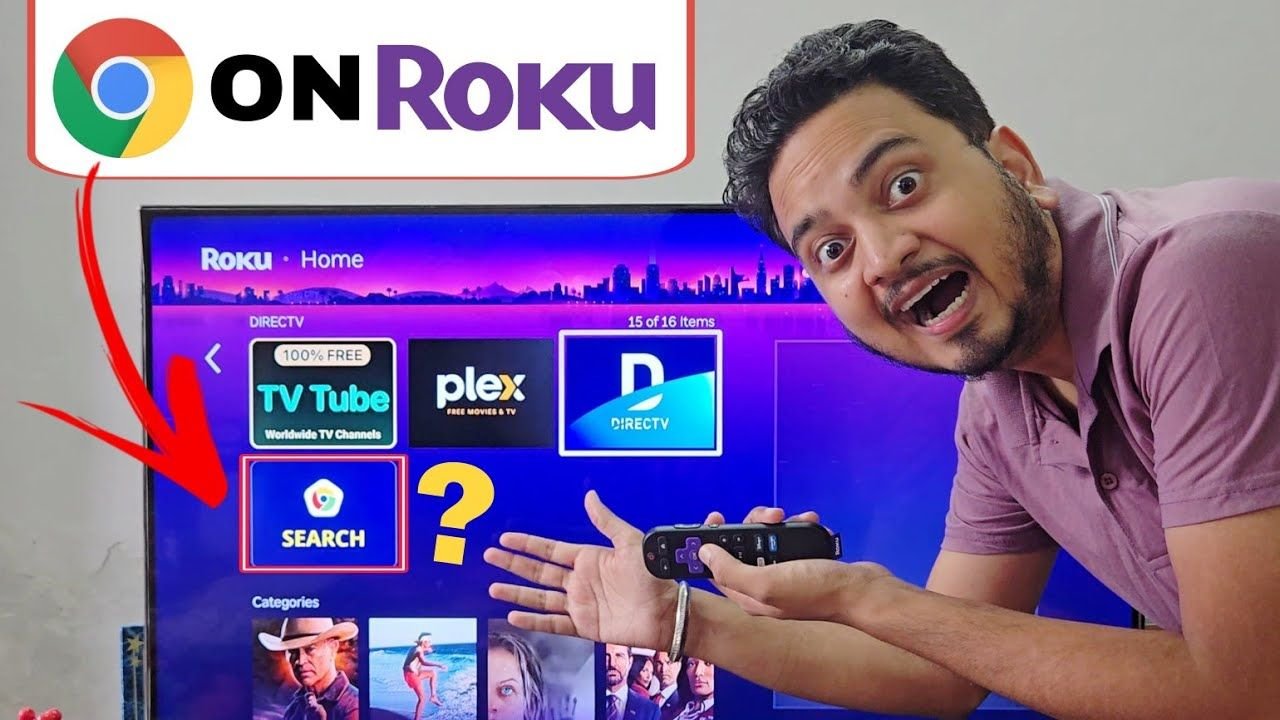
Roku is undoubtedly one of the most popular streaming platforms in the United States, offering thousands of channels for movies, live TV, and sports. However, there is one major feature that many users are constantly searching for: a built-in internet browser.
If you want to surf the web on your big screen and you search the Roku Channel Store for a “web browser,” you will likely come across a highly-rated app called “Search for Internet Browser.” But before you hit that download button, stop right there. In this guide, we are going to expose the hidden traps of this app and show you the best, completely free alternatives to actually browse the internet on your TV.
The “Search for Internet Browser” Trap Exposed
When cord-cutters look for a browser, they usually download the top result in the Roku Store. But let’s see what actually happens when you open the “Search for Internet Browser” app.
Right away, as soon as the app loads on your television, it hits you with a massive pop-up asking for a $30 yearly subscription. Most users assume they are forced to pay this exorbitant fee just to use the app. However, if you look very closely at the bottom of your screen, the developers have hidden a tiny “Maybe Later” button just to trick you.
Even if you bypass their sneaky little trap and try to use the free version, you are in for a disappointment. Sure, the app lets you type in a search query, and it even displays web and image results on a nice grid. But here is the catch: the moment you try to actually click on a link, read an article, or open an image, absolutely nothing happens. The app completely locks you out and refuses to work unless you navigate to the top right corner and click their shiny “Premium” button to hand over your credit card details.
Honestly, this is a complete bait-and-switch tactic. Do not pay $30 a year for a clunky, third-party application.
Read More:
Why Doesn’t Roku Have a Real Official Web Browser?
The harsh truth is that Roku does not have a real, official web browser like Google Chrome or Safari. Why? Because Roku operates on a closed, highly optimized operating system. It is built strictly for launching and running video streaming apps (like Netflix, Hulu, and Disney+) as smoothly as possible, not for rendering heavy, memory-intensive websites.
But don’t worry! You do not need to pay scammers to get the internet on your TV. Here are two perfectly safe, completely free methods you can use right now.
Method 1: The Screen Mirroring Hack (100% Free)
The absolute best and fastest method to browse the web on your Roku TV is to use a feature that is already built into your smartphone: Screen Mirroring. You do not need to download any special, sketchy apps for this.
Simply pull out your Apple iPhone or Android smartphone and open the screen casting feature (AirPlay for Apple, or Smart View/Cast/Wireless Display for Android). Select your Roku TV from the list of available devices. Once your phone screen is mirrored directly to your television, simply open Chrome, Safari, or Firefox on your phone. You can now browse any website perfectly on the big screen, and it costs you exactly zero dollars.
Method 2: The Ultimate Hardware Alternative
If you absolutely hate screen mirroring and you really want a dedicated web browser built directly into your streaming device, your best bet is to look outside of the Roku ecosystem.
Instead of paying a $30 yearly subscription for a fake Roku app, you can spend that money once to plug a budget-friendly Amazon Fire TV Stick into your TV’s HDMI port.
- We highly recommend the Amazon Fire TV Stick 4K.
Unlike Roku, Amazon Fire TV Sticks actually come with a completely free, official web browser out of the box called Amazon Silk. The Silk Browser is designed specifically for TVs, works seamlessly with the Alexa voice remote, and lets you surf the entire internet safely without any hidden subscription fees.
Watch the Full Video Review
Want to see the bait-and-switch app in action? Watch our full video breakdown on the USA Streaming Guide YouTube channel right here:
Conclusion
Have you ever been tricked by one of these fake Roku apps in the channel store? Don’t let them take your hard-earned cash. Stick to screen mirroring or switch to a device with a native browser like the Fire TV Stick.
Let us know down in the comments if this guide saved you a few bucks today! Make sure to bookmark USA Streaming Guide for more honest cord-cutting tips, troubleshooting guides, and hardware reviews.
Disclaimer: As an Amazon Associate, I earn from qualifying purchases.
3 thoughts on “How to Get a Web Browser on Roku in 2026”