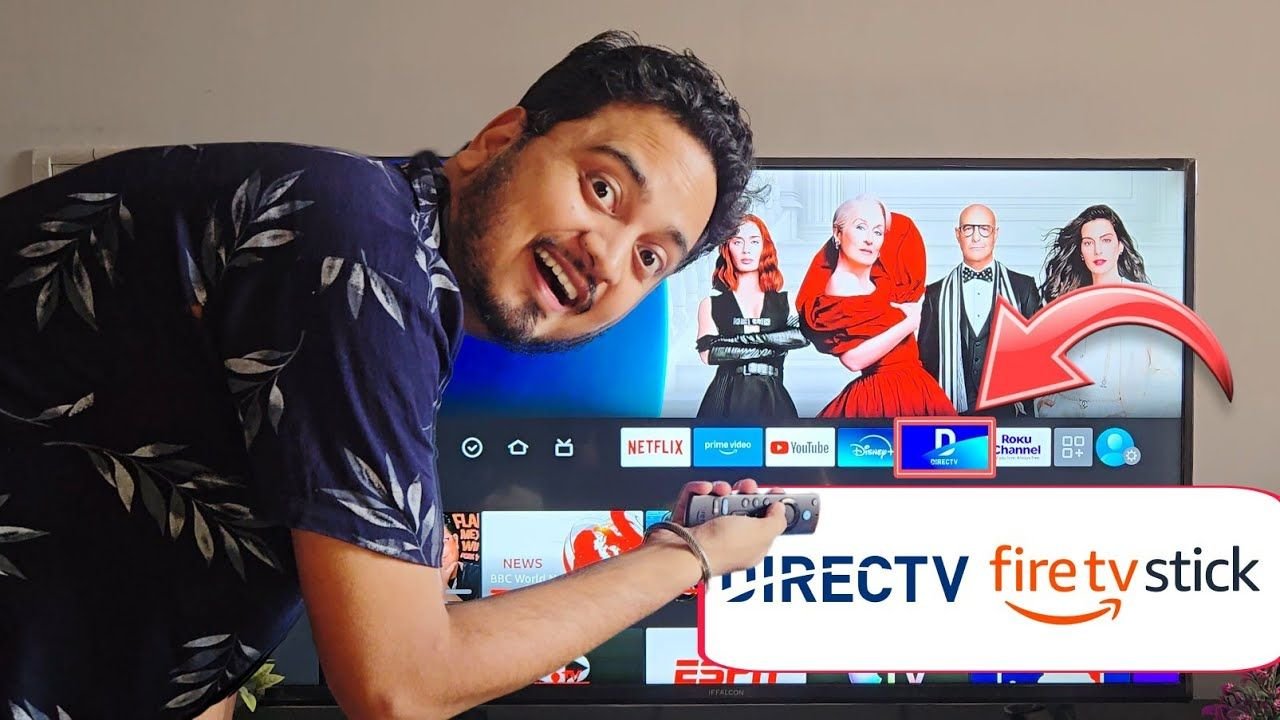
Are you trying to watch your favorite live channels, regional sports networks, and local news on DirecTV, but can’t quite figure out how to get the app onto your Amazon Fire TV Stick? You are certainly not alone. As millions of American households transition away from traditional, bulky satellite receivers and expensive monthly equipment rental fees, streaming live television directly through an Amazon Fire Stick has become the ultimate cord-cutting solution.
Because the official app is natively supported on Amazon’s Appstore, you do not need to worry about complex workarounds or sideloading third-party files. In this comprehensive guide, we will walk you through how to find, download, and install the DirecTV app in under 60 seconds, how to optimize your streaming hardware, and how to troubleshoot common playback issues.
Why Stream DirecTV on an Amazon Fire TV Stick?
Before we jump into the installation steps, it helps to understand why pairing DirecTV (whether you use DirecTV Stream or log in via your satellite provider credentials) with an Amazon Fire Stick is such a popular setup:
- Zero Equipment Rental Fees: Traditional cable and satellite providers charge monthly fees for every extra set-top box in your bedroom, kitchen, or basement. By installing the DirecTV app on a Fire Stick, you turn any television with an HDMI port into a complete live TV hub without adding a dime to your monthly bill.
- Unified Entertainment: Instead of constantly switching TV inputs between your satellite box and your streaming apps, you can access your live DirecTV channels right alongside Netflix, Prime Video, Hulu, and Pluto TV on one unified home screen.
- Portability: Going on vacation or visiting family? Simply unplug your Fire TV Stick, toss it in your bag, connect it to hotel Wi-Fi, and take your entire live TV lineup and DVR library with you.
Hardware Check: Stop Buffering Before It Starts
Before we begin the installation, let’s talk about hardware performance. Live television streaming requires significantly more processing power and memory than watching standard on-demand videos.
If you are using an older, first-generation Fire Stick and notice that your home menu is sluggish, slow to respond, or your live sports broadcasts keep freezing and buffering, it might be time for a quick hardware upgrade.
Upgrading to the newest, lightning-fast Amazon Fire TV Stick 4K or Fire TV Stick 4K Max makes a massive difference. These newer models feature upgraded quad-core processors and Wi-Fi 6 support, ensuring your live TV guide loads instantly and your streams run at a smooth 60 frames per second without annoying interruptions.
Check out the newest Amazon Fire TV Stick 4K on Amazon here for uninterrupted streaming!
Step-by-Step Guide: How to Download & Install DirecTV on Fire Stick
Ready to get your live channels up and running? Grab your Fire TV remote and follow these simple instructions:
Step 1: Start on the Main Home Screen
Power on your television and press the Home button (the icon that looks like a small house) on your Fire TV remote. Make sure you are starting directly on the main Amazon Fire TV home interface.
Step 2: Navigate to the Search Menu
Using the directional pad (the circular ring) on your remote, navigate over to the Find (magnifying glass search icon) located on the middle navigation bar of your screen.
Step 3: Search for the Official DirecTV App
Click on the search bar to pull up the on-screen keyboard. Simply start typing “DirecTV” (or hold down the Alexa voice button on your remote and say “DirecTV”). You do not even need to finish typing the full word—the official DirecTV app should pop up in the suggested search results right away.
Read More:
Step 4: Download and Install the App
Use your directional pad to highlight the official DirecTV app icon from the search results and click the center select button. [00:47] On the app information screen, select the “Download” or “Get” button (the cloud icon with a downward arrow) to begin the installation process.
Step 5: Launch and Sign In
Because the app is lightweight, the download and installation will finish in just a few moments. Once complete, go ahead and click “Open” to launch the application.
Getting into your account is incredibly easy from here. All you need to do is enter your existing DirecTV or DirecTV Stream username (email address) and password using the on-screen keyboard when prompted. Once you are signed in, you will immediately have full access to your interactive live TV guide, local channels, Cloud DVR recordings, and on-demand movies right there on your television!
Pro Tips for Getting the Best DirecTV Experience on Fire TV
Once you have the app installed and logged in, use these quick tips to customize your setup:
- Move DirecTV to the Front of Your Home Screen: By default, newly installed apps get buried at the end of your app list. Highlight the DirecTV app, press the Menu button (three horizontal lines) on your remote, and select “Move to front.” Now it will always be visible on your main toolbar.
- Use the Live Channel Filter: Inside the DirecTV guide, you can filter channels by categories like Sports, Movies, News, Kids, or Favorites so you do not have to scroll through hundreds of channels to find the game.
- Manage Your Cloud DVR: Remember that you can record live shows directly to the cloud and watch them back on any device where the DirecTV app is installed
Troubleshooting Common DirecTV App Issues on Fire Stick
If you run into a hiccup while installing or streaming, try these proven fixes before calling customer support:
- The App Won’t Download or Stays on “Queued”: This usually happens when your Fire Stick is low on internal storage or stuck updating another app in the background. Go to Settings > Applications > Manage Installed Applications, uninstall any old apps you no longer use, and restart your Fire Stick.
- Black Screen or Freezing Live Channels: Over time, temporary data builds up and slows down the app. Go to Settings > Applications > Manage Installed Applications > DirecTV. Click “Force Stop” and then select “Clear Cache” (do not click Clear Data, or you will have to type your password in again).
- Local Channels Are Missing: DirecTV uses your internet connection’s IP address to determine which local CBS, NBC, FOX, and ABC stations to show you. If you have a VPN turned on, disable it while using the DirecTV app so it can accurately detect your US zip code.
Frequently Asked Questions (FAQs)
Is the DirecTV app free to download on Amazon Fire Stick?
Yes, downloading and installing the app from the Amazon Appstore is 100% free. However, you will need an active DirecTV Stream or DirecTV satellite subscription login to watch live content inside the app.
Does this app work for both DirecTV Satellite and DirecTV Stream customers?
Absolutely! Both satellite customers and internet-only (DirecTV Stream) subscribers use the exact same official DirecTV app on the Fire TV Stick. Just sign in with your regular account credentials.
How many Fire Sticks can I use with one DirecTV account?
With DirecTV Stream, you get unlimited simultaneous streams on your home Wi-Fi network, plus up to three streams outside of your home on mobile devices or travel Fire Sticks.