Are you a die-hard football fan trying to catch every single touchdown, game highlight, and live Sunday night matchup, but can’t figure out how to get the NFL app onto your Roku TV or Roku Stick? You have come to the right place.
As millions of American households continue to embrace the cord-cutting lifestyle, relying on smart platforms like Roku to stream live sports has become the new normal. Whether you want to use your new NFL+ subscription, watch local games, or sign in through your existing cable provider, the official NFL application is your ultimate hub for all things football.
In this comprehensive, step-by-step guide, we will show you exactly how to find, download, install, and activate the official NFL app on any Roku device so you never miss a crucial play again.
Is Your Roku Ready for Game Day? (Quick Hardware Check)
Before we jump into the installation steps, let’s address a very common frustration among sports fans. Is your current Roku menu super slow to respond? Or worse, do your live football games keep freezing and buffering right in the middle of a game-changing drive?
Live sports streaming requires a solid Wi-Fi connection and a device with a fast processor to handle high-frame-rate broadcasts. If your Roku device is a few years old, it might be struggling to keep up with modern live-streaming demands.
Editor’s Choice for Buffer-Free Football: If you are tired of lag, we highly recommend upgrading your setup before the playoffs. The newest, lightning-fast Roku Streaming Stick 4K plugs right into the back of your TV and guarantees crystal-clear 4K sports streaming without the annoying buffering.
Now that your hardware is sorted, let’s get the NFL app set up on your television!
Step-by-Step: How to Download and Install the NFL App on Roku
Adding new channels to your Roku device is a very straightforward process. Follow these easy steps to get the NFL app on your home screen in under a minute.
Step 1: Navigate to the Roku Home Screen
Grab your Roku remote and press the Home button (the button with the little house icon). This ensures that you are starting right from the main dashboard of your Roku interface.
Step 2: Open the Search or Streaming Store
Using the directional pad on your remote, scroll down the left-hand menu on your screen. Depending on the version of the Roku operating system you are running, you will want to select either Search or Streaming Store.
Step 3: Search for the NFL Application
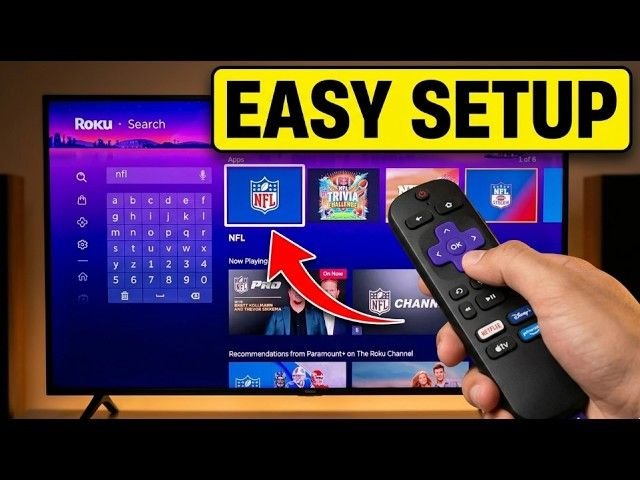
Once you are in the search menu, an on-screen keyboard will appear. Simply start typing the letters N-F-L.
You likely won’t even need to finish typing the word “football”—the Roku search algorithm is incredibly fast, and the official NFL app (featuring the iconic red, white, and blue shield logo) will pop up in the search results on the right side of your screen almost immediately.
Step 4: Add the App to Your Device
Use the right arrow on your remote to highlight the NFL channel icon and click the OK button. This will take you to the app’s detailed information screen. From here, select Add App (or Add Channel) to initiate the free download. The installation process usually takes just a few seconds depending on your internet speed.
Step 5: Launch the Application
Once the quick installation finishes, click the OK button on the confirmation prompt, and then select Go to channel right from that same screen to launch the NFL app instantly. (For future access, the NFL app will now be located at the bottom of your main Roku home screen grid. You can highlight it and press the star (*) button on your remote to move it to the top of your list).
How to Sign In and Activate Your NFL App on Roku
Now that the app is successfully installed, you need to log in to unlock the live games and premium content. Getting into your account is super easy.
Once the app opens, head up to the top menu and select the Profile or Settings icon (usually indicated by a small gear or person silhouette). Here, you will have two main options depending on how you get your football coverage:
Option A: Using an NFL+ Subscription
If you have purchased an NFL+ or NFL+ Premium subscription directly from the league, select Sign In. You will simply need to log in using the email address and password associated with your NFL account. Once authenticated, you will have immediate access to live local and primetime regular season games, full-game replays, and Coaches Film.
Option B: Using a Cable or Live TV Provider
If you already pay for a cable package or a live TV streaming service (like DirecTV Stream, YouTube TV, Hulu + Live TV, or Sling TV) that includes the NFL Network, you can use those credentials!
Select the TV Provider option. The app will display a short alphanumeric activation code on your TV screen. Go to [nfl.com/activate](https://nfl.com/activate) on your smartphone or computer, log in with your TV provider, and enter the code on your TV to instantly unlock your live television broadcasts.
Read More:
Troubleshooting: NFL App Crashing or Buffering on Roku?
If you have followed all the steps but the NFL app is crashing, freezing, or refusing to load live games, try these quick fixes:
- System Update: Go to Settings > System > System update and check for any pending Roku software updates.
- Reinstall the App: Highlight the NFL app on your home screen, press the star (*) button, and select Remove channel. Restart your Roku, and then reinstall the app using the steps above.
- Check Your Network: Live sports require a minimum of 10-15 Mbps for smooth HD streaming. Restart your Wi-Fi router if you are experiencing heavy buffering.
Conclusion
Getting the NFL app up and running on your Roku TV or Roku Streaming Stick is the ultimate way to elevate your football season. Whether you are using NFL+ or authenticating with your live TV provider, the app provides unparalleled access to highlights, stats, and live matchups.
If this quick setup guide helped you out today, be sure to bookmark USA Streaming Guide for more easy cord-cutting tips, streaming tutorials, and smart TV hardware reviews. Enjoy the game!
1 thought on “How to Install the NFL App on Roku”