
If you love cutting the cord and saving money on monthly cable bills, streaming free live television is the best way to go. One of the most popular free ad-supported streaming television (FAST) services available today is Pluto TV. Offering hundreds of live channels and thousands of on-demand movies and TV shows completely free of charge, it is a must-have app for any streaming device.
If you recently bought a Roku streaming device or upgraded your home entertainment system, you might be wondering how to add this service. This comprehensive guide will walk you through everything you need to know about how to get Pluto TV on Roku, set it up, and start streaming your favorite content within minutes.
What is Pluto TV?
Before diving into the installation process, let’s take a quick look at what Pluto TV has to offer. Owned by Paramount Global, Pluto TV operates on an ad-supported model. This means you do not need to enter a credit card, sign up for a monthly subscription, or pay any hidden fees.
The platform is split into two main sections:
- Live TV: Featuring over 250+ live channels covering news, sports, classic TV shows, reality television, movies, and dedicated pop-up channels playing a single show 24/7.
- On-Demand: A massive library of hit movies, box-set television series, and documentaries that you can stream whenever you want.
Because it is entirely free and legal, it is one of the top recommendations for US-based cord-cutters looking for reliable entertainment.
How to Install Pluto TV?
Pluto TV on your Roku device is a very straightforward process. To ensure a smooth setup, make sure you have the following ready:
- A Roku streaming device (such as Roku Streaming Stick, Roku Express, Roku Ultra) or a Roku-powered Smart TV plugged into your television and connected to the internet.
- An active Roku account. (Note: Roku requires a free account login to activate devices and manage app downloads, but you will not be charged anything to download free apps like Pluto TV).
- A stable home Wi-Fi connection.
How to Add Pluto TV to Roku (2 Easy Methods)
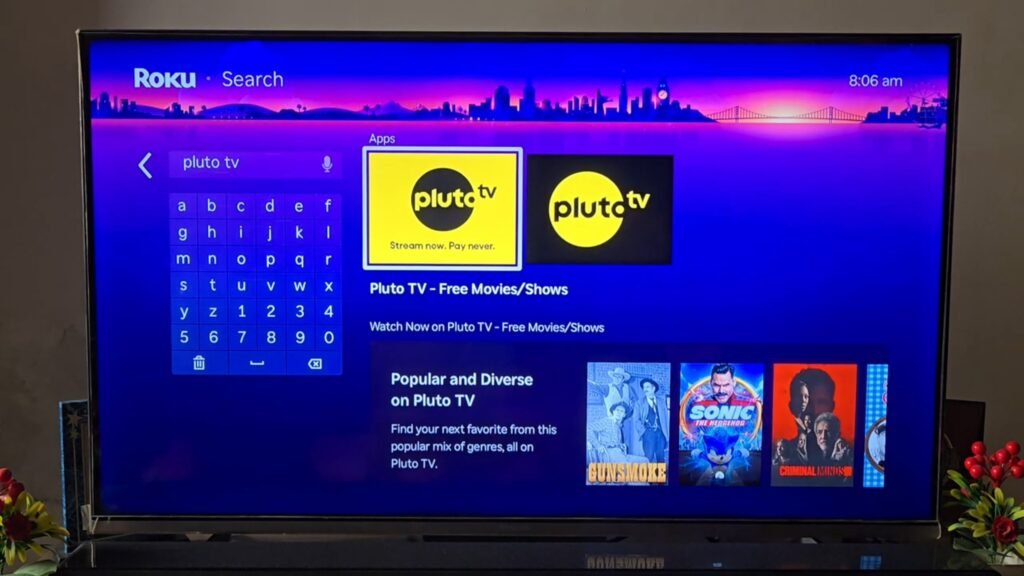
You can install Pluto TV directly through your TV screen using your Roku remote.
- Turn on your TV and ensure your Roku device is on the home screen.
- Using your Roku remote, scroll down the left-hand menu and select Search.
- In the search bar, type “Pluto TV”. Alternatively, you can browse the “Top Free” or “Movies & TV” category rows.
- Once the Pluto TV app icon appears in the search results, click on it using the OK button on your remote.
- Select the Add channel button on the app details page.
- Roku will download and install the application automatically. Once installed, select Go to channel to launch it immediately.
How to Set Up and Navigate Pluto TV on Roku
Once you open Pluto TV on your Roku for the first time, you do not strictly need to create a Pluto TV account just to watch content—you can start watching immediately. However, creating a free account allows you to save favorites and customize your experience.
Here is how to get the most out of the app:
- Navigating the Guide: Click on the Live TV tab to view the traditional grid guide. You can scroll up and down through categories like Movies, Entertainment, Comedy, Reality, News + Opinion, and Sports.
- Using Search: If you are looking for a specific movie or TV show, use the built-in search feature inside the app to check if it is available on-demand.
- Creating Favorites: By creating a free profile or logging in, you can mark specific channels as favorites, allowing you to access them quickly without scrolling through hundreds of options.
Pluto TV is undoubtedly one of the best additions you can make to your Roku setup. It bridges the gap between traditional cable-style channel surfing and modern on-demand streaming without costing a single penny.
By following this guide, you can have Pluto TV up and running on your television in less than five minutes. Happy streaming!
5 thoughts on “How to Get Pluto TV on Roku”