
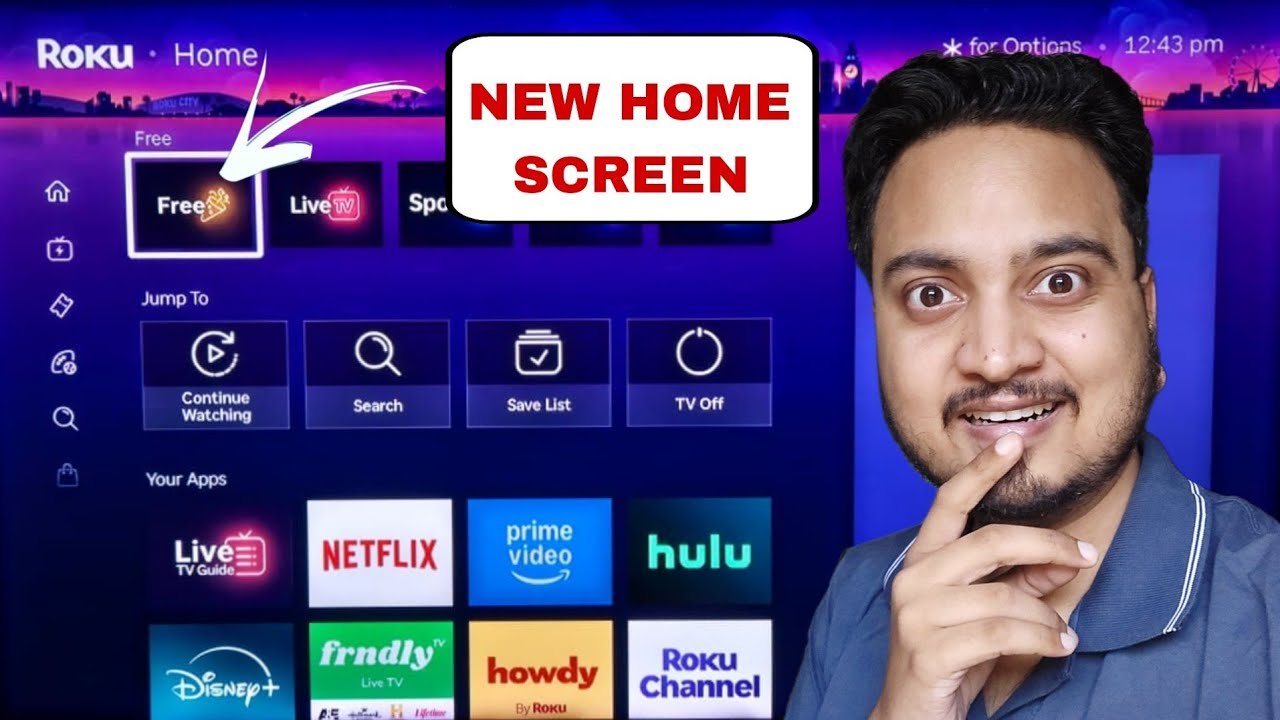
Have you seen the brand-new Roku home screen with its sleek new categories, modernized layouts, and improved navigation, but your TV is still stuck on the old version? You are definitely not alone. Recently, Roku started rolling out a massive software and user interface update to millions of devices.
However, if you turn on your TV today and still see the old, familiar interface, do not worry. Roku is known for deploying these major software updates in slow, phased rollouts to ensure server stability. The good news? You do not have to sit around and wait for the servers to automatically push the firmware to your streaming stick. In this comprehensive guide, we will show you exactly how to manually force your Roku device to check for the latest software update, so you can enjoy the new home screen experience right now.
Why You Need the New Roku Update
The new Roku dashboard is designed to make content discovery significantly easier and much more visually appealing. Instead of endlessly scrolling through a basic, boring grid of apps, the new layout organizes your streaming content into dedicated, easy-to-navigate categories.
This means you spend less time searching across different apps and more time actually watching your favorite movies, sports, and TV shows. Furthermore, this update includes under-the-hood performance improvements, bug fixes, and security patches that make navigating your device feel much snappier.
Read More:
Is Your Old Roku Ready for the New Interface? (Hardware Check)
One important thing to keep in mind is that massive visual updates can sometimes slow down older generation hardware. If your Roku device is more than three or four years old, you might notice some lag or sluggishness once the new, heavier home screen installs.
If you want a buttery-smooth experience, this is the perfect time to upgrade your streaming setup. Depending on your current TV, here are the two best options on the market right now:
- For 4K TVs (Top Pick): We highly recommend upgrading to the [Roku Streaming Stick 4K]. It features breathtaking 4K resolution, HDR10+, and Dolby Vision support for the ultimate cinematic experience, plus a long-range Wi-Fi receiver for zero buffering.
- For Standard HD TVs (Budget Pick): If you have an older 1080p TV in your bedroom or kitchen, the [Roku Streaming Stick HD] is incredibly affordable, hides perfectly behind your TV, and easily handles the brand-new software update without breaking a sweat.
How to Manually Force a Roku Software Update
Updating your Roku manually is incredibly simple and only takes a couple of minutes. Grab your Roku remote, ensure your TV is connected to a stable Wi-Fi network, and follow these exact steps:
- Go to the Main Dashboard: Pick up your Roku remote and press the Home button. This ensures you are starting from the main dashboard, no matter what streaming app you were previously using.
- Navigate to Settings: From the main home screen, use the directional pad on your remote to scroll down the left-side menu. Keep scrolling until you find the Settings option, and select it.
- Find the System Menu: Once you are inside the Settings menu, scroll down again until you highlight the System option. Select it to proceed.
- Select Software Update: Inside the System menu, navigate down and click on Software update. Here, you will be able to see your current software version and the exact date and time your device last checked for an update.
- Check for Updates: Click on the Check now button. Your Roku will immediately ping the servers for the newest firmware.
- Download and Install: If the new home screen update is available for your specific Roku model, it will immediately start downloading. Do not unplug your device during this step.
- Wait for the Restart: Once the installation is complete, your Roku device will restart on its own. When it boots back up, you should be greeted by the beautiful, brand-new Roku home screen layout!
What If It Still Says “Up to Date”?
Did you follow all the steps above, but your Roku says your software is “up to date” while still showing the old home screen? Don’t panic, your device is not broken.
As mentioned earlier, Roku rolls out these major interface updates in phases based on specific device models and geographical regions. Just be patient, leave your device plugged in, and try checking again manually in a few days.
Watch the Video Walkthrough
If you prefer a visual guide, check out our quick step-by-step video tutorial on our YouTube channel below:
Getting the new Roku home screen is a fantastic way to refresh your home entertainment setup. By checking for updates manually, you can jump ahead of the automated line. Did this quick tip help you get the new layout? Let us know in the comments below, and don’t forget to bookmark USA Streaming Guide for more streaming tutorials!
Disclaimer: As an Amazon Associate, I earn from qualifying purchases.
1 thought on “How to Get the NEW Roku Home Screen Update Manually”