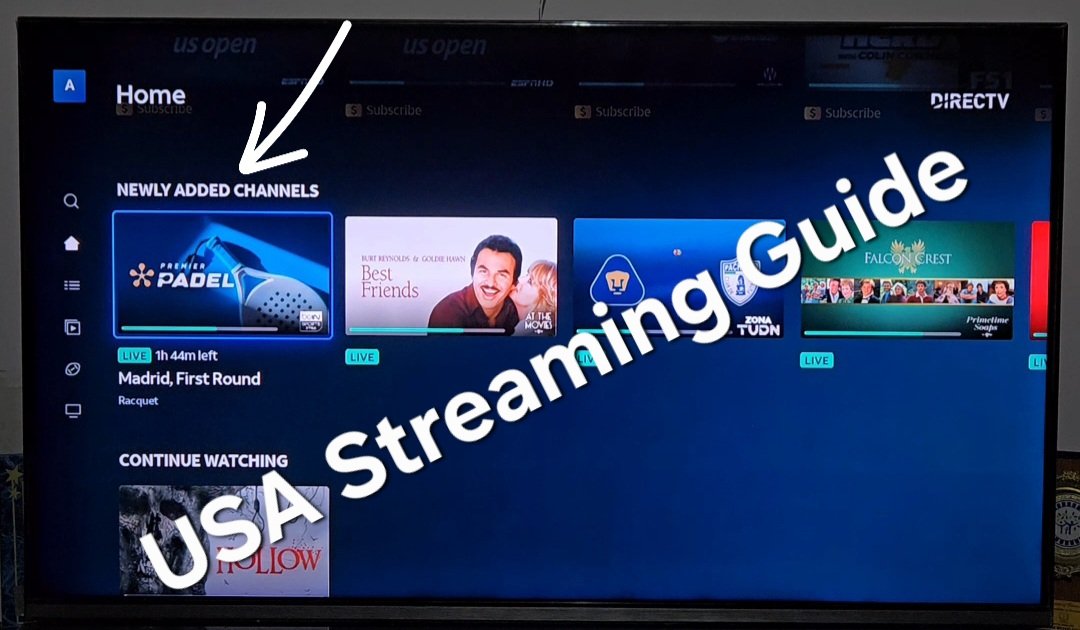
DirecTV has quietly rolled out a new dashboard update across its streaming interface, making it significantly easier to discover fresh programming without spending minutes scrolling through the endless guide grid.
If you recently updated your DirecTV app or noticed changes on your home screen, there is now a dedicated section highlighting newly launched networks, live events, and on-demand content.
Here is a quick step-by-step breakdown on how to locate the Newly Added Channels row and start watching right away.
Step-by-Step: How to Access Newly Added Channels on DirecTV
Finding these channels takes just a few clicks on your remote:
- Go to the Home Screen: Grab your streaming device remote and navigate to the main Home tab using the left-hand navigation menu.
- Scroll Down the Dashboard: On the Home page, scroll down past your recent watch history until you see a curated horizontal shelf labeled “Newly Added Channels”.
- Browse Available Networks: Scroll horizontally through the row to preview newly integrated live channels, rotating sports feeds, and specialty content.
- Click and Stream: You no longer need to remember specific 3-digit channel numbers. Simply click on the thumbnail that catches your interest (such as live soccer on channel 467), and the stream starts playing immediately in full HD.
Read More: How to Get Pluto TV on Roku Stick or Device
What Type of Content Is Featured?
The new section aggregates dynamic live broadcasts and trending cable programming, including:
- Live Sports Coverage: Major tournaments such as the US Open tennis matches and live Liga MX soccer fixtures.
- Popular Cable Series: Direct shortcuts to fan-favorite crime docuseries like The First 48.
- Dedicated Movie & Entertainment Channels: High-definition rotating movie feeds and niche entertainment networks.
For long-time DirecTV Stream and satellite app users, navigating hundreds of channel numbers just to check if something new arrived was cumbersome. This curated row acts as an instant discovery hub, bringing seasonal feeds and new channel additions directly to the forefront.
Troubleshooting: What to Do If Newly Added Channels Fail to Load
Occasionally, selecting a channel from the newly added dashboard row may result in a continuous buffering circle or a black screen. If you run into playback hiccups, follow these quick fixes:
- Clear App Cache: If you are using an Amazon Fire TV Stick or Android TV, head to your device Settings > Applications > Manage Installed Applications > DirecTV, and select “Clear Cache.” This flushes corrupted temporary data without logging you out.
- Restart Your Streaming Device: A simple system reboot clears active memory leaks. Unplug your streaming player or smart TV from the wall outlet for 60 seconds, plug it back in, and relaunch the app.
- Verify Network Bandwidth: Full 1080p HD live streams require a stable internet connection. Ensure your downstream bandwidth delivers at least 10 Mbps per streaming screen to avoid resolution drops or unexpected channel crashes.
- Force Update the App: Navigate to your streaming player’s app store (e.g., Roku Channel Store or Google Play) to confirm you are running the latest software build.
Pro Tip: How to Add Your Favorite New Channels to a Custom Guide
If you discover a network in the “Newly Added Channels” row that you plan to watch regularly, you don’t have to hunt for it on the home screen every time:
- Open the traditional Guide from the main menu.
- Navigate to the channel you wish to save.
- Select the channel name or press the Info/Options button on your remote.
- Click the Heart or Favorite icon.
This automatically pins the channel to your personalized “Favorites” tab, allowing you to bypass both the general guide and home screen carousels whenever you sit down to watch.
Frequently Asked Questions (FAQs)
Q1: Do I need a software update to see the newly added channels?
The feature rolls out server-side, but ensuring your DirecTV app is updated to the latest version on your Roku, Fire TV, or Apple TV guarantees you see the latest dashboard layout.
Q2: Are these newly added channels included in my plan?
Most highlighted channels in this feed correspond to your existing subscription package tier, while special events or premium add-ons will display unlock prompts if not in your package.